Email Deliverability Checklist: 10 Steps to Reach the Inbox
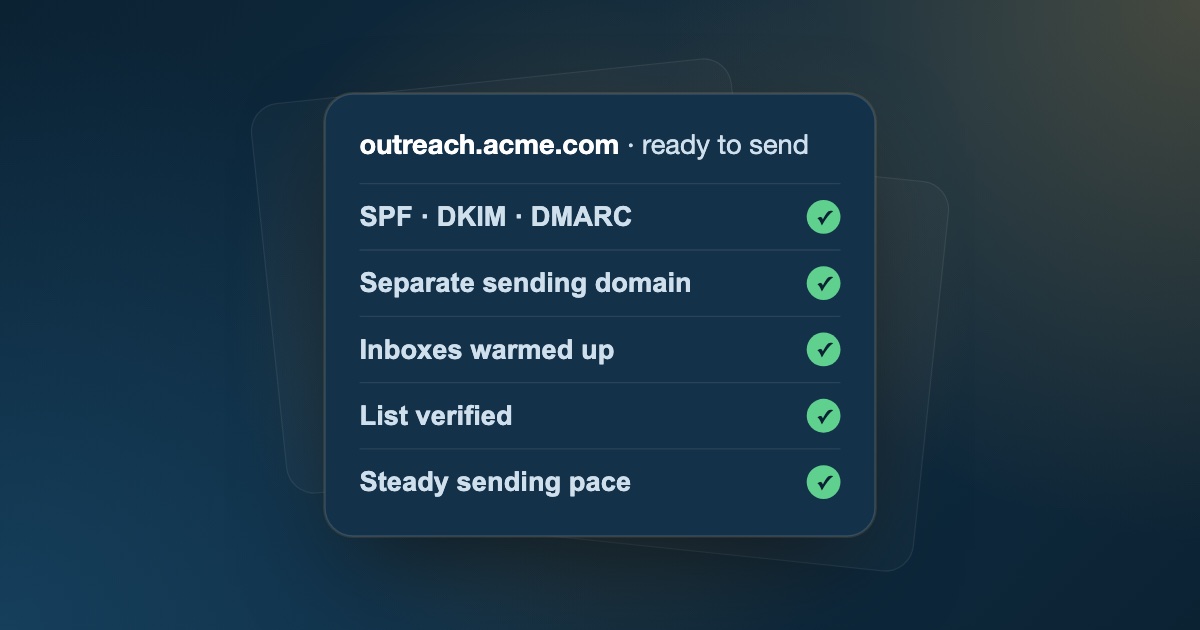
You can write a great cold email or marketing campaign and still get no results if it lands in the spam folder.
Email deliverability is about getting your messages into the inbox instead of spam, or being blocked entirely. Since 2024, Gmail and Yahoo have enforced stricter requirements for bulk senders, and Microsoft followed for Outlook.com in 2025, so the basics matter more than ever.
Use this 10-step email deliverability checklist to audit your setup, clean your list, tighten your content, and protect your sender reputation.
Quick answer: to stop emails going to spam, authenticate your domain with SPF, DKIM, and DMARC, send cold outreach from a separate warmed-up domain, verify every list so bounces stay under 2%, keep spam complaints under 0.1%, write plain and relevant emails, and monitor your reputation in Google Postmaster Tools.
Gmail, Yahoo, and Outlook Sender Requirements at a Glance
These are the rules the big inbox providers now enforce. Bulk senders (roughly 5,000+ messages a day to a provider) must meet all of them; everyone else should treat them as the baseline.
| Requirement | All senders | Bulk senders |
|---|---|---|
| SPF or DKIM authentication | Required | SPF and DKIM required |
DMARC record (at least p=none) |
Recommended | Required |
| From domain aligned with SPF or DKIM | Recommended | Required |
| Spam complaint rate | Below 0.3% | Below 0.3% (aim for under 0.1%) |
| One-click unsubscribe (marketing mail) | Recommended | Required |
| Valid forward and reverse DNS, TLS | Required | Required |
The checklist below covers each of these, plus the list and sending habits that keep you well inside the limits.
1. Authenticate Your Domain (SPF, DKIM, DMARC)
Authentication proves to inbox providers that you're allowed to send email for your domain. Unauthenticated mail is far more likely to be filtered or rejected, and for bulk senders it's now required.
Make sure your DNS includes:
- SPF (Sender Policy Framework): lists the servers allowed to send email for your domain.
- DKIM (DomainKeys Identified Mail): adds a cryptographic signature that proves the message wasn't altered.
- DMARC (Domain-based Message Authentication, Reporting, and Conformance): tells receiving servers what to do with mail that fails SPF or DKIM (
p=none,p=quarantine, orp=reject). Start atp=noneto collect reports, then tighten.
Here is what these records typically look like as DNS TXT entries (adapt them to your own provider and domain):
| Record | Host | Example value |
|---|---|---|
| SPF | yourdomain.com |
v=spf1 include:_spf.google.com ~all |
| DKIM | selector._domainkey.yourdomain.com |
Public key generated by your email provider |
| DMARC | _dmarc.yourdomain.com |
v=DMARC1; p=none; rua=mailto:dmarc@yourdomain.com |
A domain can only have one SPF record. If you send through several tools, combine their include: entries in a single record instead of adding a second one.
2. Use a Separate Domain for Cold Outreach
Never run high-volume cold outreach from your main company domain. If a campaign goes wrong, your whole team's everyday email could start landing in spam.
- Buy secondary domains (for example
getcompany.comortrycompany.com) used only for prospecting. - Redirect them with a 301 to your main website so they look legitimate.
- Authenticate each one with SPF, DKIM, and DMARC, exactly like your main domain.
3. Warm Up New Domains and Inboxes
A brand-new domain that suddenly sends hundreds of emails looks like a spammer. Build sending history gradually:
- Start small: around 5–10 emails per inbox per day.
- Ramp up over 3–4 weeks, increasing volume steadily while watching bounces and complaints.
- Consider a warmup tool to build positive engagement signals early on.
4. Verify Every Address Before You Send
High hard-bounce rates are one of the fastest ways to damage your sender reputation. Keep bounces under 2% per campaign, and ideally under 1%.
Run every list through an email verifier that checks syntax, MX records, and mailbox existence, and flags disposable, role-based, and catch-all addresses. This applies to new prospects too: addresses you find or guess for business contacts should be verified before they enter a sequence. Our email verification best practices guide explains how to build this into your workflow.
5. Handle Risky Addresses Separately
Verification won't give every address a clean "valid". Catch-all addresses can't be confirmed, and role-based aliases like info@ rarely engage with 1:1 outreach.
- Send catch-all segments from a secondary domain, in small batches.
- Exclude role-based addresses from personal sales sequences.
- Remove disposable and invalid addresses entirely.
Read more in what is a catch-all email and how to send to it safely.
6. Keep Spam Complaints Low
Spam complaints damage reputation even faster than bounces.
- Aim for under 0.1% (fewer than 1 complaint per 1,000 emails). Gmail and Yahoo require bulk senders to stay below 0.3%.
- Make unsubscribing easy. Bulk marketing mail needs one-click unsubscribe; for cold outreach, a simple "reply to opt out" line works.
- Target carefully. Relevant emails sent to the right people get far fewer complaints.
7. Write Like a Person, Not a Campaign
Spam filters look at content as well as reputation:
- Keep it plain. Use minimal HTML, few images, and no heavy design in cold emails.
- Limit links. One or two links at most, and avoid URL shorteners.
- Avoid spammy patterns like ALL CAPS, excessive punctuation, and pushy "act now" language.
- Personalize beyond
{first_name}. Specific, relevant emails earn replies, and replies improve deliverability.
8. Send at a Steady, Human Pace
Sending patterns matter as much as volume:
- Spread sends out through the day instead of sending in one burst.
- Cap daily volume per inbox and add inboxes to scale, rather than pushing one inbox harder.
- Avoid sudden spikes. Increase volume gradually, even on warmed-up domains.
9. Monitor Your Sender Reputation
Check the signals inbox providers use to judge you:
- Google Postmaster Tools: domain reputation, spam rate, and authentication results for Gmail.
- Microsoft SNDS: reputation data for Outlook.com and Hotmail.
- DMARC reports: spot authentication failures and anyone spoofing your domain.
- Blocklist checks: make sure your domain and sending IPs aren't listed.
10. Test Before You Scale
Before launching a big campaign, send to a small verified segment or a seed list across Gmail, Outlook, and Yahoo. If inbox placement looks healthy, scale up. If not, fix the problem before it affects your whole list.
Why Are My Emails Going to Spam? Quick Diagnosis
If you're already landing in spam, match the symptom to the likely cause and the checklist step that fixes it:
| Symptom | Likely cause | Fix |
|---|---|---|
| Rejected or in spam at Gmail and Yahoo only | Missing or misaligned SPF, DKIM, or DMARC | Step 1 |
| Many "user unknown" bounces | Old or unverified list | Steps 4 and 5 |
| Deliverability dropped after a big send | Volume spike or unwarmed domain | Steps 3 and 8 |
| High spam rate in Postmaster Tools | Poor targeting or hard-to-find unsubscribe | Step 6 |
| Inbox at some providers, spam at others | Content or reputation with one provider | Steps 7 and 9 |
| Main company email also hitting spam | Cold outreach sent from the primary domain | Step 2 |
Fix the List First with FeedLead
Most of this checklist depends on one thing: a clean list. FeedLead verifies every address for syntax, MX records, and SMTP deliverability, and flags disposable, catch-all, and gibberish addresses so you only send to inboxes that exist. Check a single address, clean a full CSV in bulk, or verify in real time with the API. If your list needs work first, start with how to clean an email list without losing good leads.
Key Takeaways
- Authenticate every sending domain with SPF, DKIM, and DMARC.
- Keep cold outreach on separate, warmed-up domains.
- Verify every list and keep bounces under 2% and complaints under 0.1%.
- Write plain, relevant emails, send at a steady pace, and monitor your reputation.
Frequently Asked Questions
What is email deliverability?
Email deliverability is your ability to get emails into recipients' inboxes rather than their spam folders or rejected outright. It depends on your domain authentication, sender reputation, list quality, content, and how recipients engage with your mail.
Why are my emails going to spam?
The most common causes are missing or misconfigured SPF, DKIM, or DMARC records, high bounce rates from unverified lists, spam complaints, sudden jumps in sending volume, and low engagement. Work through the checklist above to find which applies to you.
What are SPF, DKIM, and DMARC?
They are DNS records that prove you're allowed to send email for your domain. SPF lists the servers that may send for you, DKIM adds a cryptographic signature to each message, and DMARC tells receiving servers what to do with mail that fails those checks.
How long does it take to warm up a new email domain?
Plan for about three to four weeks. Start with a small number of emails per inbox per day and increase gradually while watching bounce and complaint rates.
How can I test my email deliverability?
Send to a small seed list of test inboxes across Gmail, Outlook, and Yahoo to see where your mail lands, check your authentication with a DNS or mail-tester tool, and monitor your reputation in Google Postmaster Tools.
What is the difference between email delivery and email deliverability?
Delivery means the receiving server accepted your email instead of bouncing it. Deliverability is where the accepted email ends up: the inbox, the spam folder, or a promotions tab. An email can be delivered and still never be seen if it lands in spam.
What are Gmail and Yahoo's bulk sender requirements?
Since 2024, all senders to Gmail and Yahoo need SPF or DKIM and a spam complaint rate below 0.3%. Bulk senders, roughly 5,000 or more messages a day, also need SPF, DKIM, and DMARC, a From domain aligned with SPF or DKIM, and one-click unsubscribe for marketing mail.
Do I need DMARC for cold email?
Yes. Gmail, Yahoo, and Microsoft require DMARC for bulk senders, and it's a trust signal for everyone else. A record with p=none is the minimum; it lets you collect reports before moving to a stricter policy.